The 60-second verdict
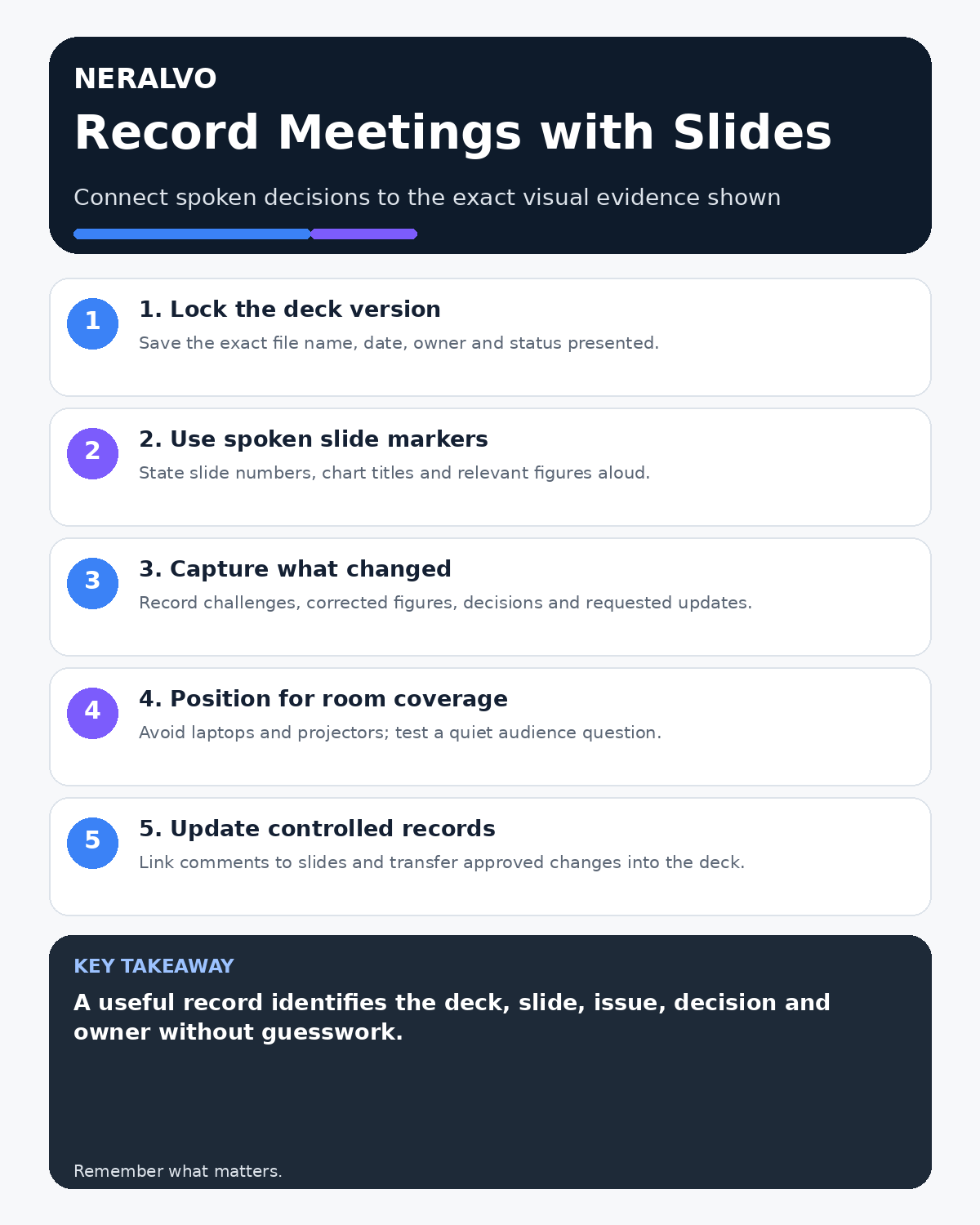
Quick answer: record meetings while presenting slides by preserving the exact deck version, saying slide and chart references aloud, placing the recorder where presenter and audience are both audible and transferring every verbal correction, decision and action into the controlled deck and meeting record.
Decision focus: use the method below only where it produces a recoverable source, a verifiable output and a clear next action. If one of those fails, change the workflow rather than trusting a polished summary.
Evidence basis and limits
- Decision factors covered: Identify the exact deck version; Use spoken visual anchors; Capture what the discussion changes.
- Evidence rule: Claims are weighted by consequence: capture failure, changed meaning, access and recovery matter more than polished wording.
- Boundary: Examples and workflow recommendations must be tested with representative recordings, the intended users and the actual approval process before rollout.
Audio alone cannot show which chart, diagram or version was visible. Without deliberate references, a useful comment may become impossible to interpret and a correction may never reach the final presentation.

Identify the exact deck version
Record the file name, owner, version, date and status of the deck shown. Save the presented version in the approved system before later edits begin. A link to “latest slides” is not enough when the content can change.
Use spoken visual anchors
- State the slide number when moving to a new section.
- Name the chart, table, diagram or option.
- Read critical figures and units clearly.
- Identify the data period and source where relevant.
- State when discussion refers to an appendix or separate document.
Avoid phrases such as “this number,” “the blue line” or “the left option” without an anchor.
Capture what the discussion changes
The final note should record questions challenging evidence, assumptions accepted or rejected, figures requiring correction, options approved or deferred, follow-up analysis and the person responsible for updating the deck.
Separate status correctly
- Presented: content shown to the meeting.
- Challenged: figure, assumption or conclusion disputed.
- Correction pending: change requested but not yet verified.
- Approved change: authorised update.
- Superseded: earlier deck no longer current.
A spoken correction should not silently overwrite the source deck.
Place the recorder for presenter and audience
A recorder beside the laptop may capture fan, keyboard and projector noise while missing questions. Test a quiet speaker from the back of the room and move the recorder toward the acoustic centre of the active discussion.
Protect remote and hybrid context
Confirm that remote participants can see the same slide version and that both room and online audio are captured through the approved route. Repeat audience questions and describe material visual changes aloud.
Handle confidential visuals
Link restricted decks through the controlled system rather than embedding sensitive screenshots in a widely shared transcript. Apply the correct access and retention rules to audio, transcript, deck and final minutes.
Use a presentation-to-record workflow
- Confirm recording and deck-sharing arrangements.
- Save the exact presented deck.
- Use spoken slide and chart markers.
- Record challenges, decisions and required changes.
- Match material transcript passages to slide references.
- Verify figures and terminology against the deck and source data.
- Update the controlled deck and decision record.
- Assign changes, owners and review dates.
Workflow choice matrix for How to Record Meetings While Presenting Slides
Choose the method that protects the source and reduces downstream correction. The table makes the non-hardware options explicit.
| Condition | Preferred route | Why |
|---|---|---|
| Repeatable remote work with approved integrations | Cloud software | Automation and central collaboration may outweigh device independence. |
| In-person, mobile or unreliable-connectivity work | Dedicated recorder | Independent capture and a recoverable local source are usually more resilient. |
| Recording is refused, prohibited or unnecessary | Manual notes / no recording | Respecting the boundary is the correct workflow, not a product failure. |
| High-risk or mixed work | Governed hybrid | Separate capture, review, approval and retention rather than trusting one tool. |
Frequently asked questions
Should the transcript describe every slide?
No. Link the deck and capture the material discussion, decisions and changes.
What if a figure is corrected verbally?
Mark the correction as pending, verify it, update the controlled deck and preserve version history.
Where should the recorder be placed?
Where both presenter and audience are audible, away from laptops, projectors and handling noise.
Useful resources
- Association for Project Management meeting guidance
- How to Capture Questions from the Back of a Room
- How to Position a Recorder on Different Table Shapes
- Check whether NERALVO Halo fits this workflow
Final presentation checklist
- Exact deck version preserved
- Material comments linked to slides
- Figures and sources verified
- Verbal changes entered into controlled records
- Presenter and audience audibility tested
- Restricted visuals access-controlled
On this page
Related guides
See whether Halo fits this workflow
Review the NERALVO Halo specifications, included services, delivery information and current offer only after completing the guide.
Found an error or an out-of-date claim? Email support@neralvo.com with the article address and a supporting source.