The 60-second verdict
Quick answer: use an AI voice recorder for Google Meet only as part of an approved workflow. Decide what evidence is required, prefer native or official sources where suitable, test the physical audio route and reconnect the transcript to slides, chat and documents before creating the final note.
Best fit: Google Meet who need recoverable audio and human-verified notes in an authorised workflow. Use another method when: recording is prohibited, a participant declines or the approved process requires manual notes.
Evidence basis and limits
- Decision factors covered: Decide what the meeting record must contain; Test the physical audio path; Make visual references explicit.
- Evidence rule: Claims are weighted by consequence: capture failure, changed meaning, access and recovery matter more than polished wording.
- Boundary: Examples and workflow recommendations must be tested with representative recordings, the intended users and the actual approval process before rollout.
Google Meet conversations often depend on shared slides, documents, chat and calendar context. A room recording may preserve speech while missing the visual evidence that makes the speech understandable.
An AI voice recorder for Google Meet can support an approved local audio workflow, but it should not be used to avoid host controls, participant notice, Workspace policy or current plan limitations. Native recording and transcription availability varies by account, administrator settings, role and product changes; check current Google guidance before relying on a feature.
Decide what the meeting record must contain
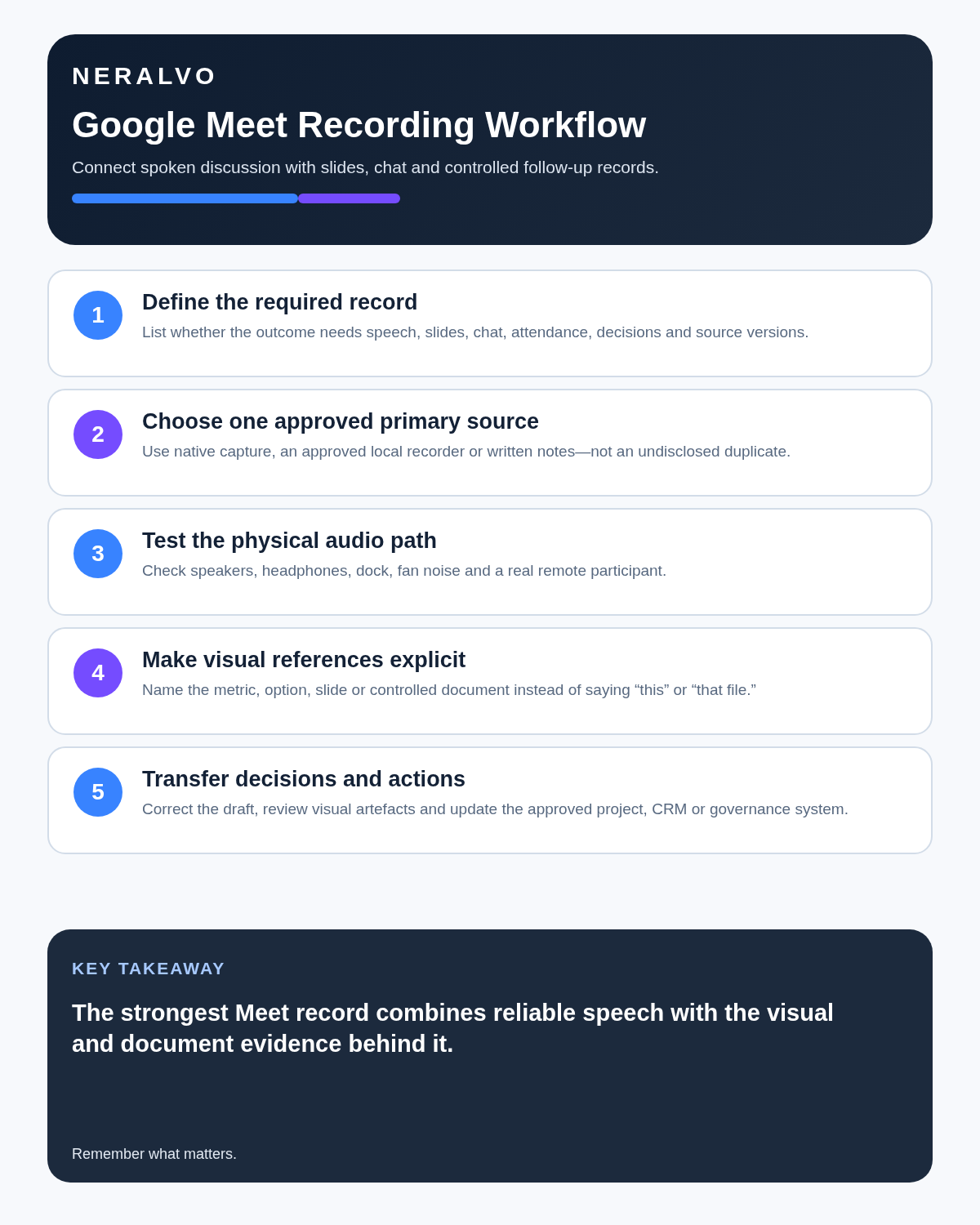
Before choosing a source, list the evidence required:
- spoken discussion
- shared slides or screen content
- chat and links
- attendance and organiser context
- decisions and actions
- source documents and current versions
When visual context is essential, approved native capture or deliberate document linking may be stronger than room audio alone.
Choose one approved source
| Source | Useful when | Main limitation |
|---|---|---|
| Meet native tools | Available, approved and sufficient | Capabilities vary by account and settings |
| Dedicated local recorder | A separate audio path is explicitly approved | No automatic slide or chat context |
| Written notes | Recording is unnecessary or not permitted | Requires disciplined note-taking and review |
A local recorder is not a workaround when a host or organisation has disabled or declined recording.
Test the physical audio path
With laptop speakers, a recorder may hear remote voices and the local speaker. With headphones, remote voices may not reach the room at all. Docks, monitor speakers, cooling fans and echo cancellation can change the result.
Run a short two-way test with the exact computer, speakers, room and remote participant. Replay the file and check the quietest voice, numbers, names and connection interruptions.
Make visual references explicit
During the meeting, identify the slide, document or dashboard being discussed. Replace vague phrases in the final note:
- “this number” becomes the metric, period and source
- “the left option” becomes the option name
- “use that file” becomes the controlled document and version
- “as shown here” becomes the chart or diagram reference
Link the approved source document rather than embedding incomplete context in the transcript.
Create a follow-up record, not a raw transcript dump
- Confirm attendee names and speaker labels.
- Correct dates, numbers, currencies and specialist terms.
- Compare speech with chat, slides and shared documents.
- Separate proposals, objections, decisions and open questions.
- Create actions with one owner and due date.
- Move outputs into the approved project, CRM or governance system.
- Apply the required access, retention and duplicate-deletion rules.
Where NERALVO Halo fits
Check whether NERALVO Halo fits google meet work provides NOTE recording for approved speaker-based meeting capture and supported CALL capture for compatible phone or social-app scenarios where recording is lawful, disclosed and permitted. It includes 64GB local storage, up to 35 hours of recording, Bluetooth sync with DOWAY and one year of DOWAY Max from activation.
Halo records audio separately; it does not capture the complete visual or Workspace context and does not bypass host or administrator controls.
Cloud software, a dedicated recorder or manual notes?
For Google Meet, the right answer changes with the setting. This matrix deliberately gives each method a situation where it can be the strongest choice.
| Situation | Best starting point | Reason |
|---|---|---|
| scheduled remote meetings | Cloud meeting software | Calendar automation and shared integrations are usually the strongest advantage. |
| in-person or mobile work | Dedicated recorder | Independent capture reduces reliance on an active phone or laptop. |
| recording is refused or prohibited | Manual notes or an approved alternative | The boundary takes priority over convenience. |
| mixed online and offline work | Governed hybrid | Use each method only in the setting it actually fits. |
Frequently asked questions
Can local hardware be used when the host disabled recording?
It should not be treated as a workaround. Follow the host and organisational process.
Does audio capture the full meeting?
No. Shared screens, chat and documents must be reviewed separately.
Can the transcript be sent immediately?
Not where decisions or confidential information matter. Verify and approve it first.
Meet record quality check
- Recording was necessary and approved.
- Participants received clear notice.
- The exact audio route was tested.
- Shared screens, chat and documents were reviewed.
- Every decision names the correct source context.
- Actions entered the authoritative system.
- Duplicate or temporary audio has a deletion decision.
Official Google Meet guidance
Bottom line: the best Google Meet record combines reliable speech capture with the documents and visual evidence that give the conversation meaning.
Related guides
Software-first workflow
Visual map for AI Voice Recorder for Google Meet: Accurate Transcripts, Decisions and Follow-Up
- Check the official platform routeConfirm current plans, integrations, permissions and supported capture.
- Test the real meeting setupUse the intended account, room, speakers and failure conditions.
- Verify the transcriptCheck omissions, speaker labels, names, numbers and downstream summaries.
- Choose software or an alternativePrefer native software unless offline or mobile capture changes the requirement.
Software-first route
Need Zoom, Teams, calendar or CRM automation?
Choose cloud software for that job. This page completes the software workflow and evidence first. NERALVO Halo remains an optional later route only when offline, in-person or phone-attached capture matters more than native integrations.
On this page
Related guides
Keep the solution aligned with your original intent
- Choose the reviewed cloud software when Zoom, Teams, calendar automation, CRM workflows or unattended bot capture are essential.
- Consider dedicated hardware later only when offline, in-person, mobile or phone-attached capture is the actual requirement.
- Use neither when permission, governance, compatibility or retention requirements cannot be met.
Verify the cloud workflow before comparing hardware
Use the official platform sources below for native Zoom, Teams, calendar, CRM and transcription capabilities. Consider Halo separately only when the workflow also needs offline or in-person capture.
Found an error or an out-of-date claim? Email support@neralvo.com with the article address and a supporting source.