The 60-second verdict
A phone can record a lecture, but it is also managing notifications, connectivity, screen activity, background apps and battery demand. The result can be a missing final hour, a full storage warning or audio interrupted by another call.
Decision focus: use the method below only where it produces a recoverable source, a verifiable output and a clear next action. If one of those fails, change the workflow rather than trusting a polished summary.
Evidence basis and limits
- Decision factors covered: The prepare → position → capture → transfer → reset workflow; Stage 1: Confirm permission and the preferred recording route; Charge for the full session—not the advertised length.
- Evidence rule: The decision is based on the complete capture-to-action workflow, not a single feature or marketing accuracy percentage.
- Boundary: Examples and workflow recommendations must be tested with representative recordings, the intended users and the actual approval process before rollout.
This guide explains how to record an approved lecture on a phone more reliably while reducing battery and storage pressure. The exact settings vary by phone, operating system and institution.
The prepare → position → capture → transfer → reset workflow
| Stage | Practical question | Useful output |
|---|---|---|
| Prepare | Is the phone ready before the lecture begins? | Battery, storage and permission check |
| Position | Where can the microphone capture clear speech safely? | Stable audio setup |
| Capture | How can the recording continue with minimal interruption? | Complete source file |
| Transfer | How will the file move into the approved study workflow? | Secure working copy |
| Reset | What should be deleted, charged and prepared for next time? | Reliable repeat process |
The best battery-saving decision is made before the lecture, not after the warning appears.
Stage 1: Confirm permission and the preferred recording route
Check whether:
- The lecture may be recorded.
- The institution already provides lecture capture.
- A disability adjustment specifies an approved method.
- Seminar or student discussion should be excluded.
- The recording is limited to personal study.
- The phone app or cloud service is permitted.
Where an institutional recording already exists, downloading or streaming the approved version may be more reliable than creating a duplicate.
Charge for the full session—not the advertised length
Allow for:
- Travel and waiting time.
- A lecture that starts late or overruns.
- Screen use before and after the recording.
- Bluetooth accessories.
- Weak mobile signal.
- File transfer after the lecture.
Begin with a comfortably charged phone. Carry an approved power bank and suitable cable where the venue permits them, but do not create a trip hazard or depend on an unavailable socket.
Clear storage before recording
Check available space and remove:
- Old duplicate recordings.
- Downloaded videos no longer needed.
- Large message attachments.
- Completed offline files.
- App caches where the operating system provides a safe method.
Do not delete the only copy of important material. Confirm that previous recordings have transferred successfully first.
Use a known recording app
Before the first important lecture:
- Record a test of similar length where practical.
- Lock the phone and confirm recording continues.
- Check how incoming calls and alarms affect it.
- Confirm the file location and format.
- Test export or sync.
- Check whether the app uploads audio automatically.
A visually simple app is not automatically reliable for long recordings.
Reduce unnecessary phone activity
Depending on the phone and recording method, consider:
- Lowering screen brightness.
- Locking the screen once recording begins.
- Closing battery-heavy apps that are not required.
- Pausing large downloads and backups.
- Using Do Not Disturb or Focus settings.
- Disabling unnecessary location or hotspot use.
- Using airplane mode only when the recording app, accessibility needs and emergency arrangements still work correctly.
Test these settings in advance. Some apps require connectivity or behave differently when calls arrive.
Be cautious with Bluetooth
Bluetooth microphones, earbuds or watches may improve convenience but add:
- Another battery to monitor.
- Possible microphone switching.
- Connection dropouts.
- Reduced compatibility with the recording app.
- Uncertainty about which device captured the sound.
For a critical lecture, a stable phone microphone may be safer than an untested wireless chain.
Stage 2: Position the phone for speech
Place the phone:
- On a stable surface.
- With the microphone unobstructed.
- Away from bags, paper, keyboards and drink bottles.
- Closer to the lecturer where seating and permission allow.
- Away from ventilation noise and group conversation.
- Where it does not block a walkway or distract others.
Do not hold the phone throughout the lecture. Handling noise and screen use can reduce both audio quality and battery life.
Record a short opening identifier
State:
- Module.
- Date.
- Topic.
- Lecture number or week.
This makes the file easier to identify if the automatic filename is unclear.
Stage 3: Keep capture simple
Once recording starts:
- Confirm the timer is advancing.
- Lock the screen if the app supports it.
- Use written timestamps instead of repeatedly opening the app.
- Avoid changing settings during the lecture.
- Check once at a natural break rather than continuously.
- Stop promptly when the approved section ends.
Repeatedly checking the waveform does not improve the recording and can increase screen demand.
Plan for incoming calls and alerts
Test whether:
- A call pauses or stops the recording.
- An alarm interrupts audio.
- A notification sound is captured.
- The app resumes automatically.
- The file remains usable after interruption.
Use the phone’s approved focus settings and tell essential contacts when practical. Do not disable emergency communication without considering personal circumstances.
Know the overheating risks
Heat can rise when the phone is:
- Charging while recording.
- In direct sunlight.
- Inside a thick case or bag.
- Running navigation, video or hotspot functions.
- Uploading a large file immediately.
Keep the device ventilated and follow the manufacturer’s guidance. Do not place it on radiators, hot equipment or unsafe surfaces.
Stage 4: Transfer the recording deliberately
After the lecture:
- Stop and save the recording.
- Confirm the file opens.
- Rename it with module, date and topic.
- Move or sync it through the approved route.
- Confirm the transferred copy is complete.
- Process only the marked sections first.
- Delete duplicates when policy allows.
Uploading through mobile data can use additional battery and data. Where appropriate, wait for trusted Wi-Fi and power.
Do not create three uncontrolled copies
A phone recording may exist in:
- The recording app.
- Local files.
- Cloud backup.
- A transcription service.
- A messaging or email attachment.
- A computer download.
Choose a controlled workflow and remove unnecessary copies. Protect classmates’ voices and course material.
Stage 5: Reset for the next lecture
Complete a short closeout:
- Charge the phone or recorder.
- Charge the power bank.
- Confirm storage.
- Process or schedule the recording.
- Delete completed duplicates.
- Check app and operating-system changes.
- Pack the correct cable.
A repeatable reset prevents the next session beginning with low battery and unknown storage.
When a dedicated recorder is more practical
A separate recorder may reduce competition with phone calls, navigation, messaging and other battery demands. It can also allow the phone to remain available for emergencies or course materials.
The same permission, privacy, storage and processing rules still apply. A dedicated device solves workflow friction, not governance.
How NERALVO Halo can support long lecture capture
View Halo specifications against the evidence checklist provides NOTE recording, supported CALL capture, 64GB local storage and up to 35 hours of recording. It connects to DOWAY through Bluetooth.
DOWAY can create transcripts, summaries, speaker-separated notes, templates, translations, mind maps and exports. One year of DOWAY Max is included from activation.
Using a dedicated recorder can preserve phone battery and reduce interruptions, but the student must still confirm institutional permission and manage the resulting files responsibly.
Lecture-device quality check
- Was the approved recording route confirmed?
- Were battery and storage checked before travel?
- Was the app tested with a locked screen and interruptions?
- Were unnecessary phone activities reduced?
- Was the microphone positioned on a stable surface?
- Was the recording checked only at sensible points?
- Was the saved file verified before transfer?
- Were duplicate copies controlled?
- Was the device reset for the next lecture?
A reliable lecture-recording setup minimises screen use, background activity and file duplication while preserving clear speech and enough power to finish the session.
Workflow choice matrix for How to Record a Lecture on Your Phone Without Draining the Battery
Choose the method that protects the source and reduces downstream correction. The table makes the non-hardware options explicit.
| Condition | Preferred route | Why |
|---|---|---|
| High-risk or mixed work | Governed hybrid | Separate capture, review, approval and retention rather than trusting one tool. |
| Recording is refused, prohibited or unnecessary | Manual notes / no recording | Respecting the boundary is the correct workflow, not a product failure. |
| In-person, mobile or unreliable-connectivity work | Dedicated recorder | Independent capture and a recoverable local source are usually more resilient. |
| Repeatable remote work with approved integrations | Cloud software | Automation and central collaboration may outweigh device independence. |
Related study guides
See how to turn lecture recordings into study notes, exam revision with voice notes and accessible learning workflows.
Related guides
Workflow map
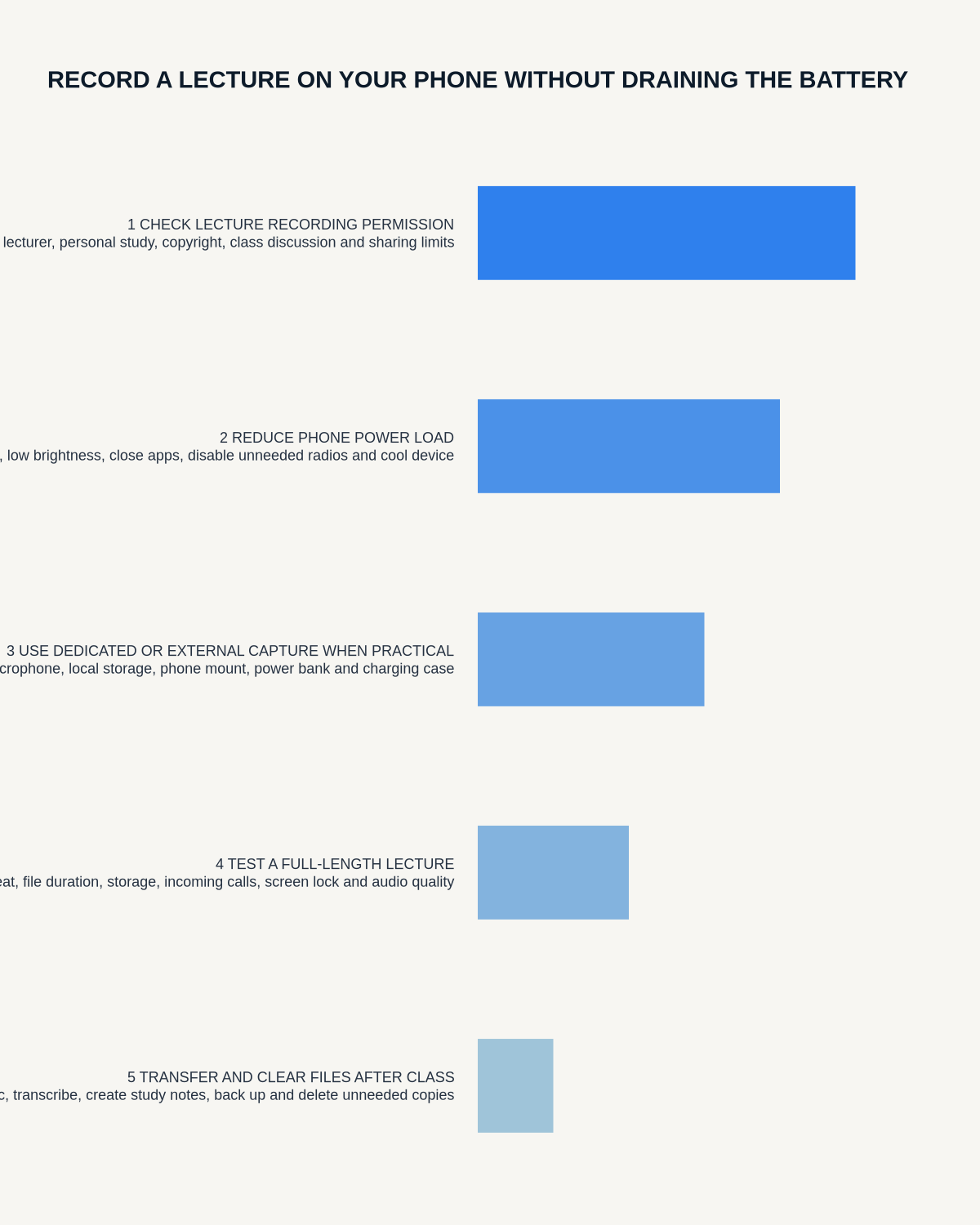
Visual map for How to Record a Lecture on Your Phone Without Draining the Battery
- Define the decisionState the question, required output and acceptance rule.
- Capture the sourceUse the approved route and preserve context, identity and limitations.
- Verify material detailsReplay or check names, numbers, negatives, decisions and actions.
- Move into the real recordAssign an owner, retain evidence and apply the deletion rule.
On this page
Related guides
See whether Halo fits long-form study capture
After checking permission and your institution’s rules, compare Halo’s stated battery, storage and export workflow with the way you actually study.
Found an error or an out-of-date claim? Email support@neralvo.com with the article address and a supporting source.