The 60-second verdict
Accessible learning begins with the barrier a student experiences, not with a particular device. Recording may reduce note-taking pressure or create another route into spoken teaching, but it will not solve every difficulty and may introduce new privacy, processing or workload barriers.
Decision focus: use the method below only where it produces a recoverable source, a verifiable output and a clear next action. If one of those fails, change the workflow rather than trusting a polished summary.
Evidence basis and limits
- Decision factors covered: The barrier → adjustment → access → participation → review workflow; Stage 1: Identify the functional barrier; Use the institution’s accessibility process.
- Evidence rule: The decision is based on the complete capture-to-action workflow, not a single feature or marketing accuracy percentage.
- Boundary: Examples and workflow recommendations must be tested with representative recordings, the intended users and the actual approval process before rollout.
An AI voice recorder for accessible learning can support approved lecture capture, searchable transcripts and spoken study methods. It should sit inside an individual support plan that considers teaching materials, assessment, communication, accessibility services and the student’s own preferences.
The barrier → adjustment → access → participation → review workflow
| Stage | Accessibility question | Useful output |
|---|---|---|
| Barrier | What prevents or substantially disadvantages the student? | Specific access need |
| Adjustment | Which reasonable and permitted support addresses that barrier? | Agreed support plan |
| Access | Can the student obtain the teaching content in a usable form? | Accessible material |
| Participation | Can the student engage, contribute and demonstrate learning? | Meaningful involvement |
| Review | Is the adjustment working without creating new barriers? | Evidence-based refinement |
This workflow treats recording as one possible adjustment, not the definition of accessibility.
Stage 1: Identify the functional barrier
Examples may include difficulty with:
- Listening and writing at the same time.
- Processing rapid speech.
- Reading dense slides or transcripts.
- Remembering multi-step verbal instructions.
- Hearing in a particular environment.
- Attending consistently because of a fluctuating condition.
- Using handwriting or a keyboard for long periods.
- Organising large amounts of study material.
- Communicating or participating in a standard format.
A diagnostic label alone does not specify the right adjustment. Two students with the same condition may need different support.
Use the institution’s accessibility process
Universities and colleges have duties to make reasonable adjustments for disabled students. GOV.UK states that education providers must make reasonable adjustments so disabled students are not discriminated against. See the current education-rights guidance.
Students should contact the institution’s disability or accessibility service. The Office for Students explains that reasonable adjustments are steps taken to remove a substantial disadvantage caused by a provider’s systems. See its guide to what disabled students can expect.
Stage 2: Choose the adjustment that fits the barrier
| Barrier | Possible support to consider |
|---|---|
| Copying while listening | Approved recording, structured notes or lecture capture |
| Rapid speech | Transcript, captions, pre-session materials or processing time |
| Visual reading load | Text-to-speech, simplified structure or alternative format |
| Memory and organisation | Templates, reminders, searchable notes or study coaching |
| Hearing access | Captions, hearing technology, suitable seating or communication support |
| Fluctuating attendance | Accessible recordings, flexible participation and clear catch-up route |
| Assessment disadvantage | Approved access arrangement or alternative assessment method |
The final combination may involve technology, teaching practice, human support and changes to timing or format.
Disabled Students’ Allowance may support eligible study costs
Disabled Students’ Allowance can help eligible students with study-related costs arising from disability, a long-term health condition, mental-health condition or specific learning difficulty. A needs assessment considers the student’s difficulties, previous support and possible technology or other assistance.
See GOV.UK guidance on Disabled Students’ Allowance and what to expect from a DSA needs assessment.
A consumer recorder is not automatically an approved or funded adjustment. Follow the current assessment, supplier and institutional process.
Stage 3: Make spoken content accessible
Where recording is approved, a useful processing sequence is:
- Capture only the necessary teaching or study section.
- Generate a draft transcript.
- Correct important errors against the audio and course materials.
- Add headings and logical sections.
- Identify speakers where needed.
- Describe diagrams or non-verbal content.
- Create a concise summary and action list.
- Export into a format compatible with the student’s tools.
A raw transcript can be inaccessible because it is long, unstructured and inaccurate.
Design notes for multiple ways of using them
Accessible notes may include:
- Clear headings.
- Short paragraphs.
- Consistent terminology.
- Meaningful lists and tables.
- Text alternatives for important visuals.
- Links to original sources.
- Audio clips for difficult sections.
- A plain-language summary.
- One next study action.
Avoid relying only on colour, complex mind maps or unexplained icons. The student should be able to navigate the material using their preferred technology.
Check compatibility with assistive technology
Test exported content with the tools the student actually uses, which may include:
- Screen readers.
- Text-to-speech.
- Speech recognition.
- Magnification.
- Alternative keyboards or switches.
- Captioning.
- Note-management software.
A PDF or image of text may look tidy but remain difficult to navigate or read aloud.
Stage 4: Support participation—not only access to content
Accessible learning should allow the student to:
- Ask questions.
- Contribute to seminars.
- Complete practical work safely.
- Collaborate without avoidable disadvantage.
- Receive feedback in a usable form.
- Demonstrate knowledge and skill.
A recording may help the student review after class but does not solve inaccessible teaching pace, group-work rules, laboratory arrangements or assessment design.
Use recording permission carefully
Confirm:
- Which sessions may be recorded.
- Whether institutional lecture capture should be used.
- How other students’ voices are protected.
- Where audio and AI processing occur.
- Whether use is limited to private study.
- How long files are retained.
- What happens when a discussion contains sensitive information.
An adjustment should not create an unnecessary archive of classmates’ personal contributions.
Keep human support in the plan
Technology may not replace:
- Disability advisers.
- Specialist study-skills support.
- Note-taking support.
- Interpreters or communication professionals.
- Teaching staff clarification.
- Wellbeing or medical support.
- Reasonable changes to assessment or placement.
Escalate problems through the institution rather than expecting the student to solve an inaccessible system with personal technology alone.
Stage 5: Review whether the adjustment works
Evaluate:
- Did the adjustment reduce the original barrier?
- Can the student use it consistently?
- Is the output accurate and accessible?
- Does processing create excessive extra work?
- Are privacy and storage manageable?
- Does the student participate more effectively?
- Has the course, placement or assessment changed?
- Is a different or additional adjustment needed?
Review with evidence from the student’s experience rather than assuming the tool works because it produced a transcript.
Create an accessible study closeout
After each recorded session, reduce the material to:
- The central question.
- Three to five verified ideas.
- A term or section needing clarification.
- An accessible file location.
- One active-recall task.
- The next support question or adjustment issue.
This prevents recordings from becoming a backlog that increases cognitive load.
How NERALVO Halo can support accessible learning
View Halo specifications against the evidence checklist provides NOTE recording, supported CALL capture, 64GB local storage and up to 35 hours of recording. It connects to DOWAY through Bluetooth.
DOWAY can create transcripts, summaries, speaker-separated notes, templates, translations, mind maps and exports. One year of DOWAY Max is included from activation.
Halo may complement an approved accessible-learning workflow. It is not automatically a reasonable adjustment, DSA-approved item or substitute for inclusive teaching and specialist support.
Accessible-learning quality check
- Was the functional barrier identified?
- Was the institution’s accessibility process used?
- Does the adjustment match the individual student?
- Was recording approved for the relevant session?
- Was the transcript corrected and structured accessibly?
- Does the output work with the student’s assistive technology?
- Did the support improve participation as well as content access?
- Are human and assessment supports still in place?
- Has the adjustment been reviewed from the student’s experience?
A strong accessible-learning workflow removes a specific barrier, gives the student usable material and evolves when the course or the student’s needs change.
Workflow choice matrix for How to Use AI Voice Recorders for Accessible Learning
Choose the method that protects the source and reduces downstream correction. The table makes the non-hardware options explicit.
| Condition | Preferred route | Why |
|---|---|---|
| High-risk or mixed work | Governed hybrid | Separate capture, review, approval and retention rather than trusting one tool. |
| Recording is refused, prohibited or unnecessary | Manual notes / no recording | Respecting the boundary is the correct workflow, not a product failure. |
| In-person, mobile or unreliable-connectivity work | Dedicated recorder | Independent capture and a recoverable local source are usually more resilient. |
| Repeatable remote work with approved integrations | Cloud software | Automation and central collaboration may outweigh device independence. |
Related accessible-study guides
See the guides for students with dyslexia, students with ADHD, distance learners and lecture recording and study notes.
Related guides
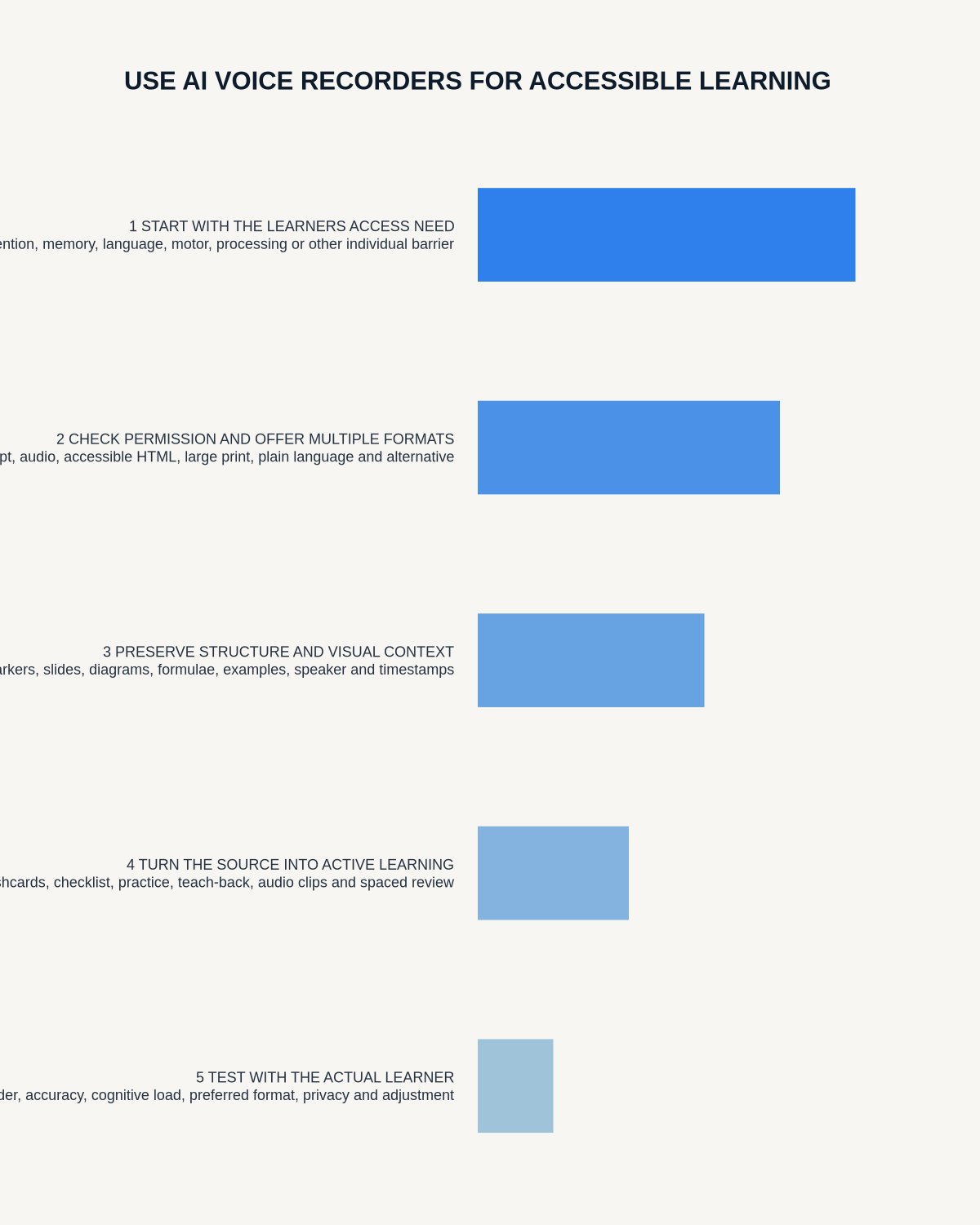
Workflow map
Visual map for How to Use AI Voice Recorders for Accessible Learning
- Define the decisionState the question, required output and acceptance rule.
- Capture the sourceUse the approved route and preserve context, identity and limitations.
- Verify material detailsReplay or check names, numbers, negatives, decisions and actions.
- Move into the real recordAssign an owner, retain evidence and apply the deletion rule.
On this page
Related guides
See whether Halo fits this workflow
Review the NERALVO Halo specifications, included services, delivery information and current offer only after completing the guide.
Found an error or an out-of-date claim? Email support@neralvo.com with the article address and a supporting source.