The 60-second verdict
Quick answer: create accessible meeting notes from a recording by identifying the users and formats first, correcting the transcript, using a logical heading structure, separating decisions and actions, restoring visual context, offering usable document formats and testing the result with accessibility tools and intended recipients.
Decision focus: use the method below only where it produces a recoverable source, a verifiable output and a clear next action. If one of those fails, change the workflow rather than trusting a polished summary.
Evidence basis and limits
- Decision factors covered: Identify the audience and required formats; Establish a logical reading order; Use short sections, lists and simple tables.
- Evidence rule: A claim earns weight only when the source, date, configuration and limitation are clear enough for a reader to check.
- Boundary: Examples and workflow recommendations must be tested with representative recordings, the intended users and the actual approval process before rollout.
An accurate transcript is not automatically accessible. A long wall of text may be difficult to navigate, and audio alone cannot preserve slides, diagrams, gestures or chat. Accessibility must shape the complete workflow rather than being added at the end.

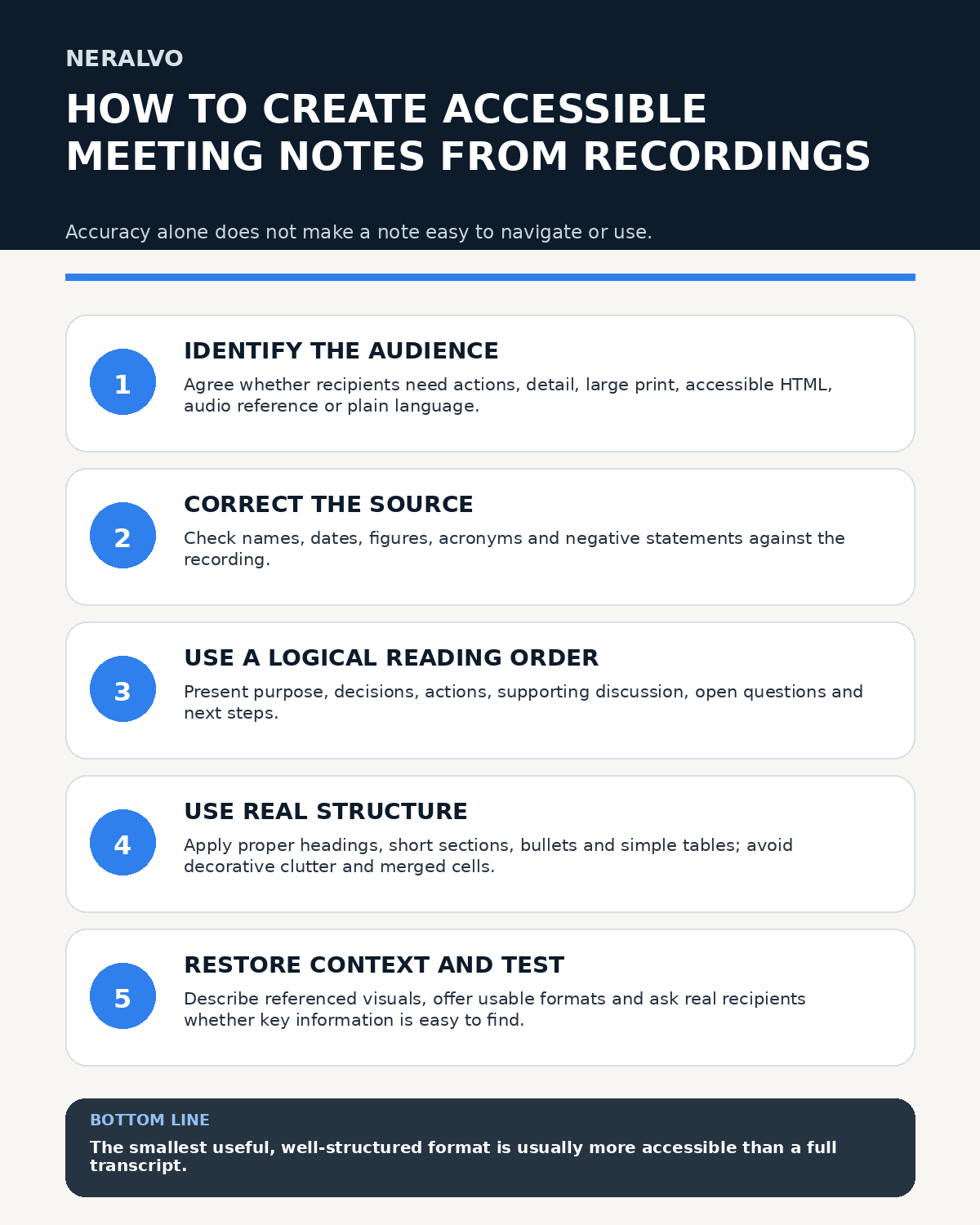
Identify the audience and required formats
Ask who needs the notes and how they will use them. Some people may prefer a concise action list; others may need a detailed record, audio reference, caption file, large-print version, accessible HTML or plain-language summary.
Define whether the output is formal minutes, a decision and action record, learning material, consultation notes or general reference.
Create an accurate source record
Follow the applicable recording and participant-information process. Start with meeting title, date, roles, purpose and agenda. After transcription, check names, dates, amounts, acronyms, specialist terms and negative statements against the audio.
Mark uncertain passages instead of guessing. Keep the transcript labelled as a draft source until correction is complete.
Establish a logical reading order
- Meeting purpose and essential context
- Decisions reached
- Actions, owners and deadlines
- Supporting discussion or evidence
- Open questions and next steps
Use real heading levels in order. Do not create visual headings with bold text alone, because assistive technology relies on document structure.
Use short sections, lists and simple tables
Keep one main idea per section. Use bullets for related items and numbered lists for sequences. Explain specialist language where appropriate.
Simple action tables can work well when they contain task, owner, deadline and status. Avoid merged cells, blank spacer rows and complicated nested tables. Use a list when it communicates the information more clearly.
Make decisions and actions easy to find
Create separate sections for decisions and actions instead of burying them in a transcript. Each action should identify:
- the task;
- the responsible person or role;
- the deadline or review date;
- dependencies or required input;
- current status.
Distinguish suggestions from agreed actions. Mark missing ownership or timing as unresolved.
Restore visual and non-verbal context
When speakers refer to “this chart,” “the red section” or a demonstration, link to the accessible source and add a meaningful description. Include the conclusion the visual supported without introducing new interpretation.
Informative images need useful alternative text. Complex diagrams may require a longer text explanation or data table.
Use meaningful links and labels
Link text should describe the destination, such as “project risk register,” rather than “click here” or a pasted URL. Expand acronyms on first use and use file names that remain understandable outside their folder.
Offer multiple usable outputs
Depending on the audience, provide one or more of:
- an accessible editable document;
- tagged PDF where required;
- accessible HTML;
- plain-text or plain-language summary;
- large-print version;
- caption or transcript file;
- audio playback with useful timestamps;
- a visual summary with a text equivalent.
Do not make PDF the only option simply because it preserves layout. Keep an editable source.
Check document accessibility
Use the authoring software’s accessibility checker and then review manually:
- document title and heading order;
- reading order;
- alternative text and visual descriptions;
- link purpose;
- table headers and simplicity;
- colour contrast and information conveyed by colour;
- language settings;
- font size, spacing and zoom behaviour;
- keyboard and screen-reader navigation.
An automated checker cannot decide whether the note is understandable or whether the correct context has been restored.
Protect privacy and versions
Remove personal information not needed for the purpose. Restrict recordings and detailed transcripts to authorised users. A broadly shared action note may need more minimisation than the controlled source.
Add owner, meeting date, version and last-updated date. Mark drafts and replace superseded versions. Delete duplicate exports and source audio under the approved retention schedule.
Test with intended recipients
Ask users whether they can find decisions, actions and supporting context efficiently. Where appropriate, test with the assistive technology or format they actually use.
How NERALVO Halo fits an accessible-notes workflow
The NERALVO Halo AI Voice Recorder can support audio capture, transcription, summaries, translations and visual outputs through DOWAY. These outputs are starting material: a person must verify accuracy, restore missing visual and non-verbal context and prepare the format required by the intended recipient.
Workflow choice matrix for How to Create Accessible Meeting Notes from Recordings
Choose the method that protects the source and reduces downstream correction. The table makes the non-hardware options explicit.
| Condition | Preferred route | Why |
|---|---|---|
| Repeatable remote work with approved integrations | Cloud software | Automation and central collaboration may outweigh device independence. |
| In-person, mobile or unreliable-connectivity work | Dedicated recorder | Independent capture and a recoverable local source are usually more resilient. |
| Recording is refused, prohibited or unnecessary | Manual notes / no recording | Respecting the boundary is the correct workflow, not a product failure. |
| High-risk or mixed work | Governed hybrid | Separate capture, review, approval and retention rather than trusting one tool. |
Related guides
Frequently asked questions
Is a transcript accessible because it is text?
No. Long unstructured text may be difficult to navigate and may omit visual information.
Should a PDF be the only version?
Not automatically. Provide an editable or HTML alternative where the PDF is difficult to use.
Do automated accessibility checkers prove compliance?
No. They find some technical issues, but human review and user testing remain necessary.
How should complex diagrams be handled?
Provide useful alternative text plus a longer description or data table where needed.
Useful resources
- W3C Web Content Accessibility Guidelines
- How to Turn AI Transcripts into Plain-English Summaries
- Apply this guide before assessing NERALVO Halo
Accessible-notes checklist
- Audience and formats defined
- Transcript corrected
- Reading order and headings logical
- Decisions and actions easy to find
- Visual context restored
- Links, acronyms, tables and images understandable
- Alternative formats available
- Privacy and version control completed
- Accessibility tools and intended users consulted
On this page
Related guides
See whether Halo fits this workflow
Review the NERALVO Halo specifications, included services, delivery information and current offer only after completing the guide.
Found an error or an out-of-date claim? Email support@neralvo.com with the article address and a supporting source.